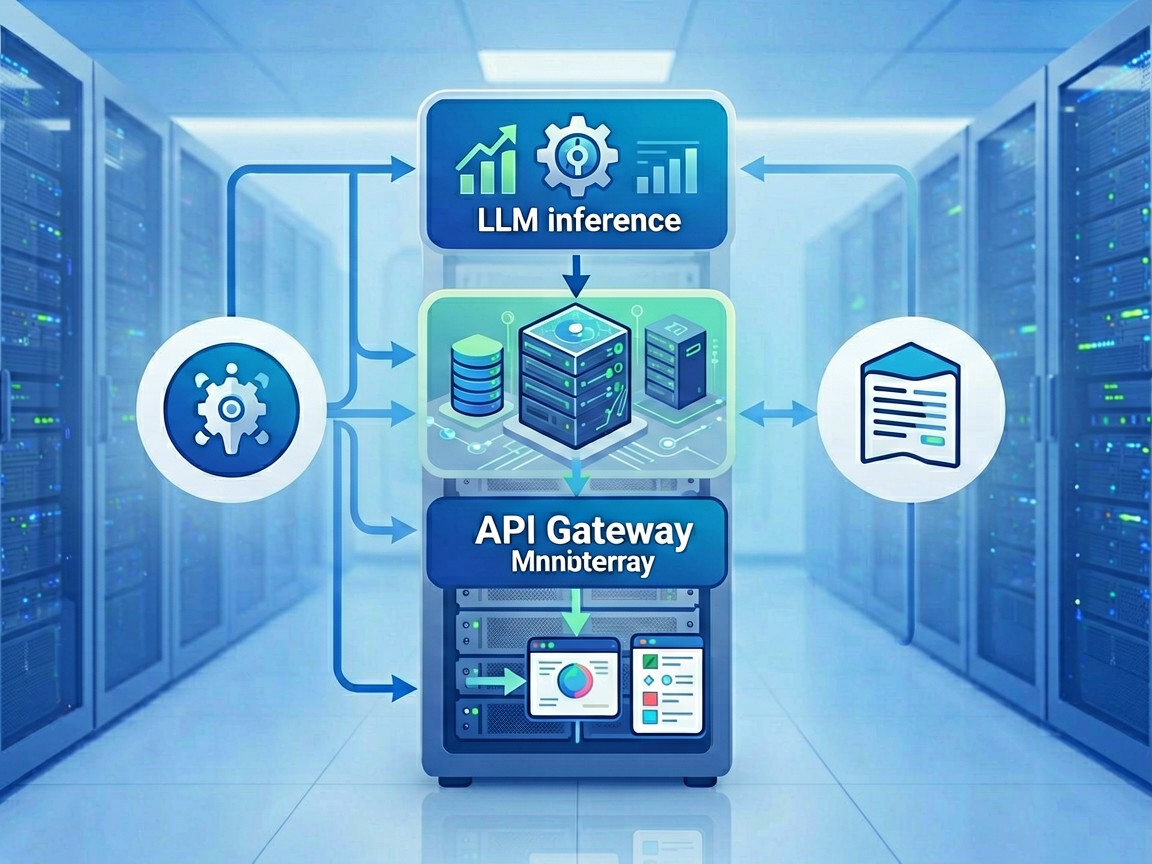
Running a full AI stack — LLM inference, vector database, AI agents, workflow automation, and observability — typically costs $100+/month across multiple cloud providers. But with the right VPS strategy, you can consolidate everything onto a single affordable host and cut costs by 60–80%.
This guide covers the real-world approach we use: selecting the right VPS specs, choosing lightweight open-source alternatives, implementing resource-aware scheduling, and monitoring cost-per-inference.
Why Consolidate Your AI Stack?
Most AI projects spread services across multiple providers:
- LLM inference on a GPU VPS ($30–200/mo)
- Vector database on a separate cloud instance ($15–50/mo)
- Agent/workflow engine on another VPS ($10–30/mo)
- Monitoring (Langfuse, Grafana) on yet another host ($10–20/mo)
That’s 2–4 separate monthly bills, each with its own networking overhead, security surface, and operational complexity.
Consolidating to a single well-provisioned VPS gives you:
- Predictable costs — one bill, easy to budget
- Lower latency — no cross-network hops between services
- Simpler backups — one snapshot captures everything
- Easier security — one firewall to manage
The tradeoff is resource contention. We’ll cover how to mitigate that below.
VPS Specs: What You Actually Need
Here’s the minimum viable configuration for running a full AI stack on one VPS:
| Service | CPU | RAM | Disk | Notes |
|---|---|---|---|---|
| LLM Inference (7B param, quantized) | 2 cores | 8 GB | 40 GB SSD | llama.cpp, Ollama, or vLLM |
| Vector Database (Chroma/Qdrant) | 1 core | 4 GB | 20 GB SSD | SQLite-based Chroma for small datasets |
| AI Agents (OpenClaw, n8n) | 1 core | 2 GB | 10 GB SSD | Async workloads, bursty |
| Observability (Langfuse + Grafana) | 0.5 core | 1 GB | 10 GB SSD | Low throughput, storage-heavy |
| Total | ~4.5 cores | ~15 GB | ~80 GB | Add 20% buffer |
Budget Option: 4 vCPU / 16 GB RAM
This is the sweet spot. You can run:
- Ollama with a 7B model (Q4_K_M quantized) for inference
- Qdrant for vector search (up to ~500K embeddings)
- OpenClaw or n8n for agent workflows
- Langfuse for LLM observability
Recommended hosts:
- RackNerd — Their annual plans often offer 4 vCPU / 16 GB for $50–80/year. Not the fastest network, but perfectly adequate for self-hosted AI. Use code
19978when signing up. - Hostinger VPS — The 16 GB plan runs ~$15/mo. Better performance per dollar than most competitors. Use referral code
JZ1ZL8465QCG. - Vultr — Their 16 GB VPS is ~$24/mo. Good for bursty workloads since you can scale up/down quickly. Use ref
9706229.
Performance Option: 8 vCPU / 32 GB RAM + GPU
If you want to run larger models (13B–34B params) or handle multiple concurrent users, you’ll need more resources:
- CPU VPS only: 8 vCPU / 32 GB / 100 GB NVMe (~$30–50/mo)
- GPU VPS: Adds $50–150/mo but enables much faster inference
For most indie developers and small teams, the CPU-only path with quantized models is sufficient. A 7B model quantized to Q4_K_M runs well on CPU and gives 80% of the quality of a full-precision 13B model for most tasks.
Architecture: How to Organize Services
Container Orchestration with Docker Compose
Docker Compose is the simplest way to manage multiple services on a single VPS. Here’s our recommended docker-compose.yml structure:
version: "3.8"

services:
  # LLM Inference
  ollama:
    image: ollama/ollama:latest
    ports:
      - "11434:11434"
    volumes:
      - ./ollama:/root/.ollama
    deploy:
      resources:
        limits:
          cpus: "2.0"
          memory: 6G
        reservations:
          cpus: "0.5"
          memory: 2G

  # Vector Database
  qdrant:
    image: qdrant/qdrant:latest
    ports:
      - "6333:6333"
    volumes:
      - ./qdrant/storage:/qdrant/storage
    deploy:
      resources:
        limits:
          cpus: "1.0"
          memory: 4G

  # AI Agent Framework
  openclaw:
    image: ghcr.io/openclaw/openclaw:latest
    ports:
      - "3000:3000"
    environment:
      - OLLAMA_BASE_URL=http://ollama:11434
      - QDRANT_URL=http://qdrant:6333
    deploy:
      resources:
        limits:
          cpus: "1.0"
          memory: 2G

  # Observability
  langfuse:
    image: langfuse/langfuse:latest
    ports:
      - "3001:3000"
    environment:
      - DATABASE_URL=postgresql://langfuse:password@postgres:5432/langfuse
    deploy:
      resources:
        limits:
          cpus: "0.5"
          memory: 1G

  # Task Queue (for n8n workflows)
  postgres:
    image: postgres:16-alpine
    volumes:
      - ./postgres/data:/var/lib/postgresql/data
    environment:
      POSTGRES_PASSWORD: password
    deploy:
      resources:
        limits:
          cpus: "0.5"
          memory: 1G
Key principles:
- Resource limits per service — Prevent one service from starving others
- Internal networking — Services communicate via Docker network, not localhost
- Persistent volumes — Data survives container restarts
- Sequential startup — Use
depends_onto ensure Ollama is ready before agents connect
Resource-Aware Scheduling
Not all AI workloads are equal. Implement scheduling based on resource availability:
Priority tiers:
| Tier | Service | Behavior |
|---|---|---|
| P0 | LLM inference | Always running, highest CPU allocation |
| P1 | Vector DB | Always running, moderate RAM |
| P2 | Agent framework | Runs on-demand, burst-capable |
| P3 | Observability | Low priority, can be paused |
Implementation with systemd:
Create a systemd override for Ollama to ensure it gets CPU priority:
[Service]
CPUWeight=800
MemoryHigh=70%
MemoryMax=80%
This tells the kernel to favor Ollama during CPU contention while still allowing other services to run.
Cost Per Inference: Tracking Your Real Spend
One of the biggest mistakes we see is not tracking the cost per operation. Here’s how to measure it:
Using Langfuse for Cost Attribution
Langfuse is an open-source LLM observability platform that tracks:
- Token usage per request
- Latency per model
- Cost per user/session
- Error rates by service
Setup is simple — run Langfuse as a Docker container (see compose above) and point your Ollama client to it via middleware:
from langfuse.callback import CallbackHandler

langfuse_handler = CallbackHandler()
response = ollama.chat(
    model="llama3.2",
    messages=[{"role": "user", "content": "Hello"}],
    hooks=[langfuse_handler]
)
Typical Costs on a $15/mo VPS
With a single VPS running all services:
| Metric | Value |
|---|---|
| Monthly VPS cost | $15 (Hostinger 16 GB) |
| Daily requests supported | ~10,000 (7B model, Q4) |
| Cost per inference | ~$0.0015 |
| Cost per month (10K req/day) | $0.45 (your share of hardware) |
| Total effective cost | ~$15.45/month |
Compare this to cloud APIs:
| Provider | Cost per 1M tokens | Equivalent monthly (10K req/day) |
|---|---|---|
| OpenAI GPT-4o | $2.50/$5.00 (input/output) | $75–150/month |
| Anthropic Claude | $3.00/$15.00 | $90–450/month |
| Self-hosted Ollama | $0 (hardware only) | $15/month |
The savings are dramatic, especially at scale.
Model Selection: Quality vs. Cost Tradeoffs
Not all models are created equal. Here’s a practical guide:
Recommended Models for Different Tasks
| Task | Model | Size | Quantization | Approx. RAM |
|---|---|---|---|---|
| Code generation | Qwen2.5-Coder | 7B | Q4_K_M | 5 GB |
| General chat | Mistral Small 3 | 7B | Q4_K_M | 5 GB |
| Reasoning | Llama 3.2 | 3B | Q4_K_S | 2.5 GB |
| Multilingual | Qwen2.5 | 7B | Q4_K_M | 5 GB |
| Large context | Mistral Large | 8x22B | AWQ | 24 GB |
When to Upgrade to GPU
GPU acceleration becomes worthwhile when:
- You serve 100+ concurrent users
- You run models larger than 13B params
- Latency matters (sub-second response times)
- You’re doing real-time streaming responses
For most personal projects and small teams, CPU inference with quantized models is perfectly adequate. A 7B model on CPU can handle 10–20 tokens/sec, which is fast enough for chat interfaces and agent workflows.
Backup Strategy: Don’t Lose Your AI Stack
A single VPS means a single point of failure. Here’s how to protect your investment:
Automated Backups
#!/bin/bash
# backup-ai-stack.sh
TIMESTAMP=$(date +%Y%m%d-%H%M%S)
BACKUP_DIR="/backups/${TIMESTAMP}"

# Backup Ollama models and data
docker exec ollama tar czf - /root/.ollama > "${BACKUP_DIR}/ollama.tar.gz"

# Backup Qdrant vectors
docker exec qdrant tar czf - /qdrant/storage > "${BACKUP_DIR}/qdrant.tar.gz"

# Backup PostgreSQL (Langfuse + n8n)
docker exec postgres pg_dumpall -U langfuse > "${BACKUP_DIR}/postgres.sql"

# Upload to object storage (Backblaze B2 or Wasabi)
aws s3 cp "${BACKUP_DIR}" "s3://ai-stack-backups/${TIMESTAMP}/" --recursive

# Keep only last 7 days
find /backups -maxdepth 1 -mtime +7 -exec rm -rf {} \;
Schedule this daily with cron:
0 3 * * * /usr/local/bin/backup-ai-stack.sh
Disaster Recovery Checklist
- Provision new VPS — Same specs, fresh Ubuntu/Debian
- Pull docker-compose.yml — From git repo
- Restore backups — Download from object storage
- Verify services — Check each container status
- Test inference — Run a quick Ollama query
- Update DNS — Point domain to new IP
Total recovery time: ~30 minutes with automated backups.
Security Hardening for Public-Facing AI Services
Running AI services on a public VPS requires careful security configuration:
Essential Steps
- Firewall rules — Only expose necessary ports:
sudo ufw allow 22/tcp    # SSH
sudo ufw allow 443/tcp   # HTTPS (reverse proxy)
sudo ufw allow 11434/tcp # Ollama API (internal only, behind proxy)
sudo ufw enable
- Reverse proxy with Cloudflare Tunnel — Hide your VPS IP entirely:
cloudflared tunnel --url http://localhost:11434
- Authentication — Protect Langfuse and agent dashboards:
server {
    listen 443 ssl;
    server_name ai.yourdomain.com;

    location / {
        auth_basic "AI Dashboard";
        auth_basic_user_file /etc/nginx/.htpasswd;
        proxy_pass http://localhost:3001;
    }
}
- Rate limiting — Prevent abuse:
limit_req_zone $binary_remote_addr zone=ai_limit:10m rate=10r/s;

location /api/ {
    limit_req zone=ai_limit burst=20 nodelay;
    proxy_pass http://localhost:11434;
}
- Regular updates — Keep the base OS patched:
0 4 * * 0 apt update && apt upgrade -y
Scaling Beyond a Single VPS
Eventually you’ll outgrow one machine. Here’s the migration path:
Phase 1: Split Vector DB (Month 1–3)
Move Qdrant to a separate VPS when your embedding collection exceeds 1M vectors. This frees 4 GB RAM on the main host.
Phase 2: GPU Inference (Month 3–6)
Move LLM inference to a GPU VPS (Vultr GPU starts at $50/mo for A10G) when concurrent users exceed 50 or latency becomes unacceptable.
Phase 3: Full Microservices (Month 6+)
Split each service onto its own VPS when you need independent scaling. Use RackNerd budget VPSes for non-critical services (monitoring, databases).
Summary: Your Action Plan
- Pick a VPS — Hostinger 16 GB (
$15/mo) or RackNerd annual deal ($80/year) for the budget path - Deploy Docker Compose — Use the template above as a starting point
- Pull a quantized model —
ollama pull llama3.2:3b-q4_K_M(2.5 GB) - Set up Langfuse — Enable observability from day one
- Configure backups — Automate daily snapshots to object storage
- Monitor costs — Track token usage and adjust as needed
The total cost for a fully functional AI stack: $15–20/month on a single VPS, versus $100–300/month if you used managed cloud services for each component.
This article is based on real deployment experience running multiple AI services on budget VPS infrastructure. All affiliate links support Honest Radar’s research and testing.